What's Still Billing After You Deleted the VM?
A team decommissions an application. The virtual machines are deleted, the change is closed, and everyone moves on.
The bill doesn't move as much as expected.
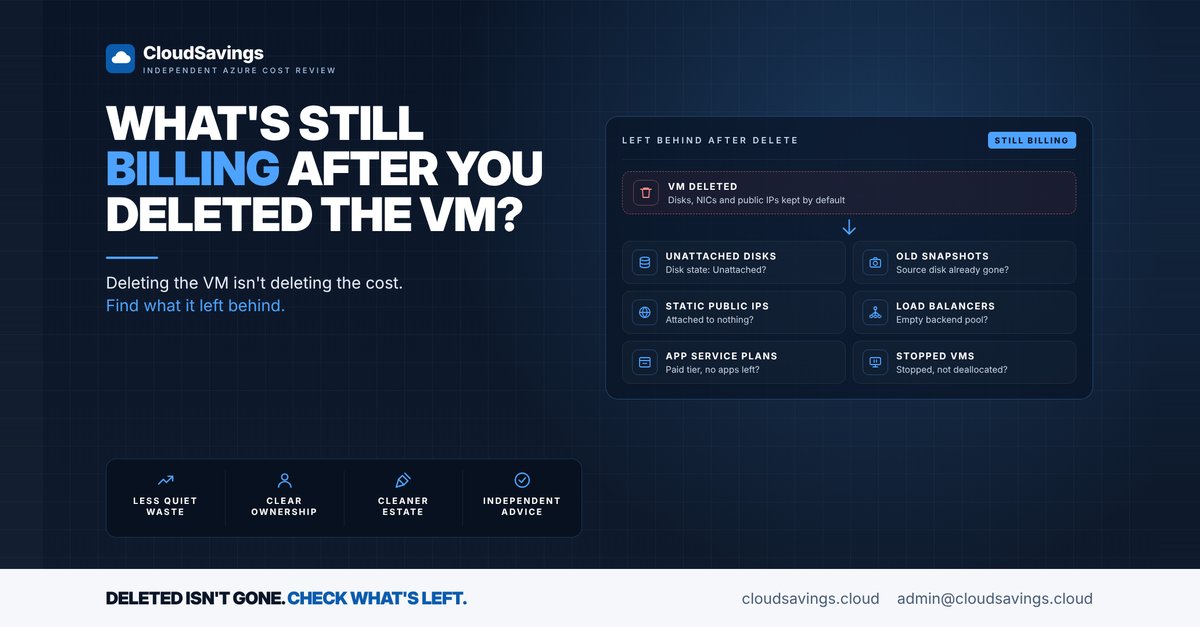
That's because deleting a VM doesn't delete everything it used. By default, Azure keeps the disks, network interfaces and public IP addresses associated with a VM unless they were set to delete with it.
That isn't a bug. It's a safety net that stops someone losing data with one click. The gap is that nobody owns the leftovers, and many of them keep billing every month.
Why it happens
Each VM is really a bundle of separate resources: compute, one or more managed disks, a network interface, often a public IP, and sometimes a load balancer or snapshot schedule around it. Each resource has its own lifecycle and its own line on the invoice.
Whether those pieces go when the VM goes depends on the deleteOption setting on each disk, NIC and public IP. Current portal deployments set the OS disk to delete with the VM, but data disks, NICs and public IPs are kept unless someone chose otherwise. Templates written a few years ago often don't set it at all.
Then there are resources that were never attached to a VM in the first place: snapshots taken before a change and never removed, an App Service plan whose last app was moved, a load balancer left behind after a migration.
None of them raises an error. They just sit there, and because they're small individually, nobody goes looking.
What to check
These are the leftovers our reviews look for first.
- Unattached managed disks. A disk in the
Unattachedstate isn't used by any VM, and you keep paying for it. A disk in theReservedstate is attached to a deallocated VM, which is a different question: is that VM still needed? - Old snapshots. Snapshots are billed separately from their source disk, on used size, and they exist independently of it. Look for snapshots older than your retention need, snapshots on premium storage, and snapshots whose source disk no longer exists.
- Unassociated static public IPs. Azure charges for a static public IP address whether or not it's attached to anything. Billing stops only when the IP address resource is deleted.
- Load balancers with empty backend pools. A Standard Load Balancer with nothing behind it does no useful work. Azure Advisor's Cost Optimization workbook treats these as idle.
- App Service plans with no apps. On Basic tier and above, the plan is billed for each VM instance it defines, not for each app. Stopping or removing the apps doesn't stop the plan's charge. Deleting the plan, or moving it to the Free tier where suitable, does.
- Stopped but not deallocated VMs. A VM in the
Stoppedstate still holds its hardware allocation and is still billed for compute. Shutting down from inside the guest OS leaves it in this state. OnlyStopped (deallocated)releases the hardware, and even then disks and networking keep billing. - Owner tags on every leftover. Before anything is deleted, someone needs to be able to say whether it's still needed. A disk tagged with an owner you can ask is a five-minute decision. An untagged one becomes a meeting.
How to check your own estate
Every step below is read-only. Deleting comes later, after the owner has confirmed.
1. Open the Advisor Cost Optimization workbook
In the Azure portal, open Advisor, select Workbooks, and open Cost Optimization (Preview). The Usage Optimization tabs list unattached managed disks, unattached public IPs, load balancers and application gateways with empty backend pools, old snapshots, stopped VMs that aren't deallocated, and more. You can filter by subscription, resource group and tag.
The workbook is a starting point, not a verdict. It doesn't know which disk is someone's only backup.
2. List unattached disks with Resource Graph
Azure Resource Graph Explorer queries across every subscription you can read. This lists unattached managed disks, their size, and the owner tag:
Resources
| where type =~ 'microsoft.compute/disks'
| where properties.diskState =~ 'Unattached'
| project name, resourceGroup, subscriptionId,
    sku = tostring(sku.name),
    sizeGb = toint(properties.diskSizeGB),
    owner = tostring(tags['owner'])
| order by sizeGb desc
From the Azure CLI, the equivalent check for the current subscription is:
az disk list --query "[?managedBy==null].{name:name, rg:resourceGroup, sizeGb:diskSizeGB}" -o tableaz disk show also returns LastOwnershipUpdateTime, which tells you when an unattached disk was detached.
3. Find public IPs that aren't attached to anything
Resources
| where type =~ 'microsoft.network/publicipaddresses'
| where isnull(properties.ipConfiguration) and isnull(properties.natGateway)
| project name, resourceGroup, subscriptionId,
    sku = tostring(sku.name),
    allocation = tostring(properties.publicIPAllocationMethod)
Static addresses on that list are billing. Check with the owner before releasing one: a published DNS record or a firewall allow-list somewhere may depend on it.
4. Find App Service plans with no apps
Resources
| where type =~ 'microsoft.web/serverfarms'
| where toint(properties.numberOfSites) == 0
| project name, resourceGroup, subscriptionId, tier = tostring(sku.tier)
Any plan on Basic tier or higher in this list is being paid for with nothing running on it.
5. Find VMs that are stopped but still allocated
az vm list -d --query "[?powerState=='VM stopped'].{name:name, rg:resourceGroup}" -o tableA VM showing VM stopped rather than VM deallocated is still billed for compute. It may simply have been shut down from inside the operating system.
6. Agree who can delete
Take the lists to the resource owners, not just the platform team. Agree a short rule: what gets deleted, what gets snapshotted first, and who signs off. Then set deleteOption in your templates so the next decommission cleans up after itself.
The lesson
Deleted isn't gone. Most leftovers are small, and that's exactly why they last.
In FinOps Framework terms, finding them is the Inform phase and removing them is Optimise. The finding is the easy part. The harder part is having an owner who's allowed to say yes.
If nobody on your team has looked for unattached disks recently, the workbook and the first query above are a good place to start.
Sources
- Microsoft Learn: Delete a VM and its attached resources
- Microsoft Learn: Find and delete unattached Azure managed and unmanaged disks
- Microsoft Learn: Find and delete unattached managed disks with the Azure CLI
- Microsoft Learn: Disks REST API, DiskState values
- Microsoft Learn: Create a snapshot of a virtual hard disk
- Microsoft Learn: States and billing status of Azure Virtual Machines
- Microsoft Learn: Azure App Service plan overview
- Microsoft Learn: Azure Advisor Cost Optimization workbook
- Azure pricing: IP addresses
- FinOps Foundation: FinOps Framework
An independent view of your Azure spend. I sell no licences, managed services or remediation, so my findings have nothing attached to them.
Book a 30-minute call