Why Didn't Your Budget Alert Catch the Spike?
The bill came in high. The budget alert never fired, or it fired a week after anyone could have done something about it.
The budget isn't broken. It's doing the job it was built for.
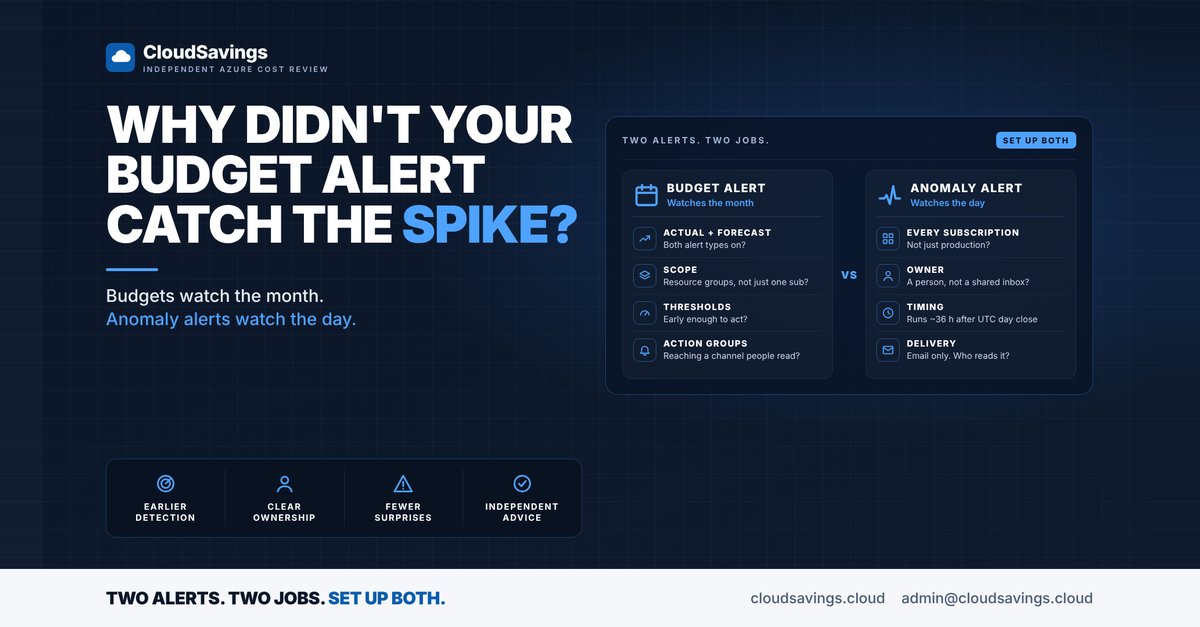
A budget alert asks one question: are we heading over the number we set for the period? An anomaly alert asks another: does today look unlike the last 60 days? Those are different questions, and they catch different failures.
In our reviews, the gap is rarely the tooling. It's teams setting up one and assuming it covers both.
Two alerts, two jobs
What a budget watches
An Azure budget compares accumulated cost for a period, monthly, quarterly or annually, against an amount you set. Cost data typically arrives within 8 to 24 hours, budgets are evaluated against it every 24 hours, and the email normally goes out within an hour of the evaluation that crosses a threshold.
Each threshold is either Actual, firing when accrued cost passes a percentage of the budget, or Forecasted, firing when Azure's projection for the period passes that percentage. A budget can carry up to five thresholds and five email addresses.
A budget never stops anything. Resources keep running and consumption carries on.
What an anomaly alert watches
Anomaly detection looks at a single subscription's daily cost and compares it with a forecast built from the previous 60 days. It runs about 36 hours after the UTC day closes, alert rules can only be created at subscription scope, and the alerts are email only.
It has no idea what your budget is. It only knows what normal looks like.
The failure modes each one misses
The slow leak
A new workload, a logging setting turned up, a dev environment left running at weekends. Cost rises a little each day. No single day stands out from the one before, so the anomaly model may treat it as the new normal: within a few weeks it is part of the 60-day history the forecast is built on.
A forecasted budget threshold is what catches this. The trend pushes the projected month-end total over the line well before the actual total gets there.
The one-day spike
Here is an illustrative example. A subscription with a A$60,000 monthly budget has a single day where a misconfigured job adds A$4,000 of spend. That's under 7% of the month. An 80% actual-cost threshold won't notice, and a forecast may barely move.
An anomaly alert is built for this. A day that looks nothing like the last 60 is exactly what it flags, whatever the budget says.
The early-month surge
Daily spend doubles in the first week. An actual-cost threshold at 80% may not be reached for a fortnight. A forecasted threshold should react sooner, and an anomaly alert should flag the first day of the change about a day and a half later.
Budgets watch the month. Anomaly alerts watch the day. The FinOps Framework lists "using budget alerts vs an anomaly detection service" as a Crawl-stage trait for Anomaly Management.
What to check
- Budget type. Are your thresholds actual cost only, or is there at least one forecasted threshold per budget?
- Scope. Is there one budget per subscription, or budgets at resource group level for the teams that spend? Budgets also work at management group scope.
- Thresholds. Are they set early enough to act on, such as a forecast threshold below 100%, or only at a point where the money is already spent?
- Action groups. Do budget alerts trigger an action group that reaches a channel someone reads? Action groups are only supported at subscription and resource group scope.
- Budget amount. When was the amount last reviewed? A budget set two years ago may now be too loose to fire, or so tight it fires every month and gets ignored.
- Anomaly coverage. Is an anomaly alert rule switched on for every subscription with real spend, not just production?
- Timing. Does the team know an anomaly alert describes a day that ended roughly 36 hours earlier, and a budget alert reflects data that can be up to a day old?
How to check your own estate
These steps are read-only.
1. List your budgets
In Cost Management, set the scope to a subscription and open Budgets. Note each budget's scope, amount, reset period and thresholds. From the Azure CLI you can list them too:
az consumption budget list --subscription <subscription-id> --output table2. Check threshold types
Open each budget and look at its alert conditions. If every threshold has the type Actual, the budget can only tell you about money already spent. Note whether any Forecasted threshold exists.
3. Follow the notifications
For each budget, read the email recipients and any action group attached. Open the action group in Azure Monitor and check where it actually sends: a person, a team channel, a ticket queue or a mailbox nobody owns.
4. Compare with recent spend
In Cost analysis, look at daily cost for the last three months. Find the highest days and the steepest weeks, then ask which alert, if any, would have caught each one and when.
5. Check anomaly rules alongside
On the same subscription, open Alert rules and confirm there is a rule with the alert type Anomaly. A subscription with a budget but no anomaly rule is covered for the month and blind to the day.
The point
Neither alert is the better one. A budget tells you the period is going wrong. An anomaly alert tells you today is. Set up both, on every subscription that carries real spend, and make sure each one reaches someone who can act on it.
Sources
- Microsoft Learn: Create and manage budgets
- Microsoft Learn: Identify anomalies and unexpected changes in cost
- FinOps Foundation: Anomaly Management capability
An independent view of your Azure spend. I sell no licences, managed services or remediation, so my findings have nothing attached to them.
Book a 30-minute call